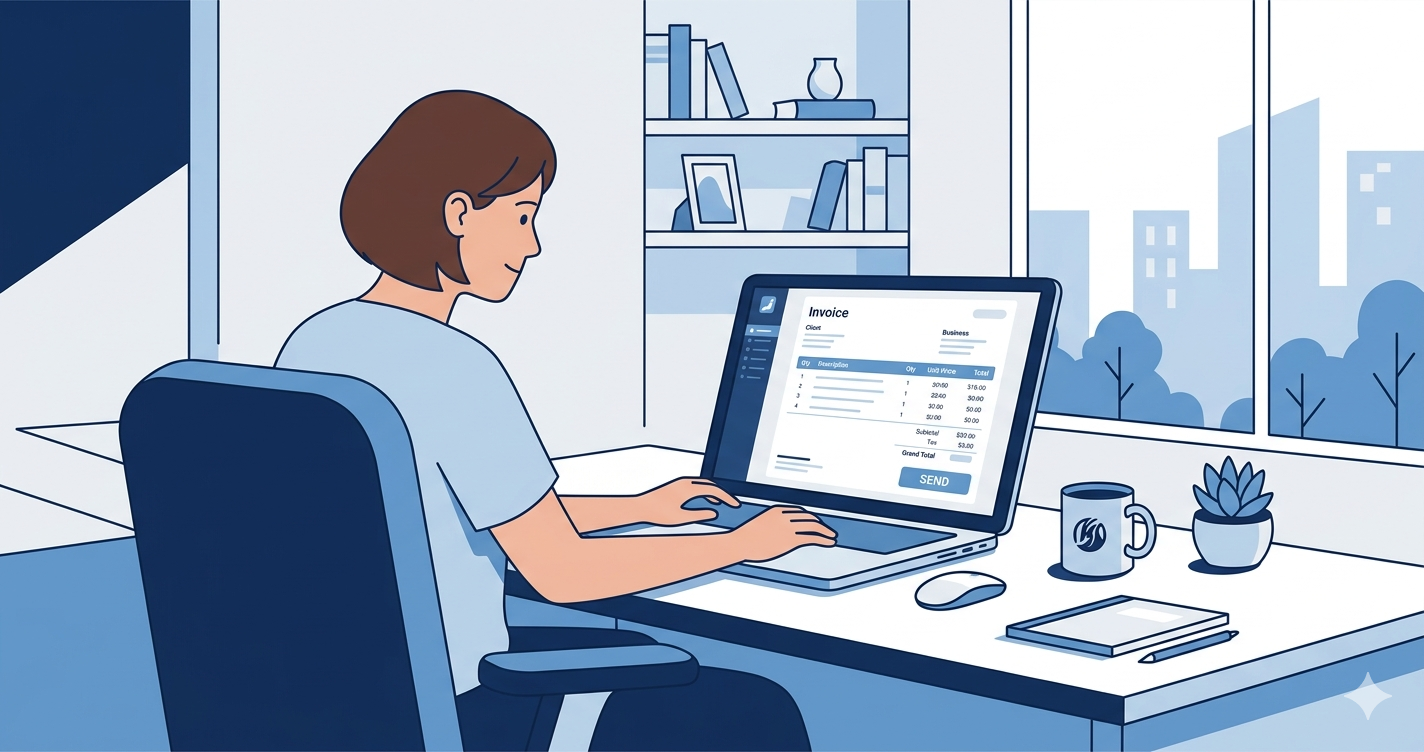
Screenshots use demonstration data in the English interface. Before preparing an invoice, select your business country in Business Settings; the application sets the VAT rate according to that country. The pictured time-import example predates country setup, so its USD currency and 0% tax are sample values, not the configuration of an Israeli business.
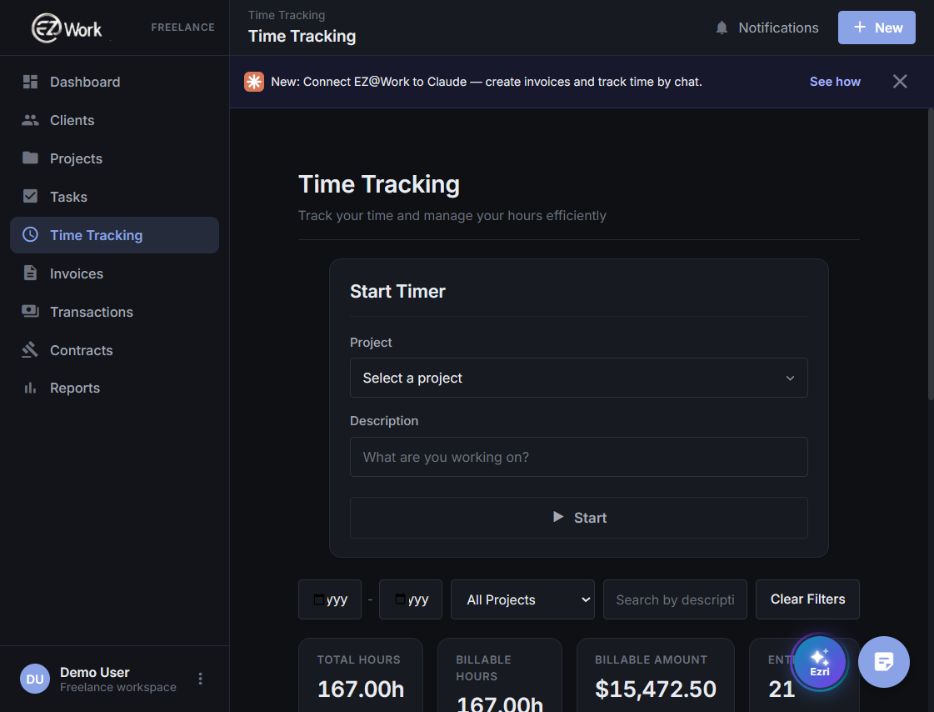
Review the work you recorded
Open Time Tracking from the sidebar. Check the project, description, duration, billable flag and amount for the work you intend to invoice. Use the project and date filters to narrow the list. In the demo, Website Redesign contains several March entries; these are the records used in the example below. Confirm the records against your agreement with the client before continuing.
Choose the client, then the project
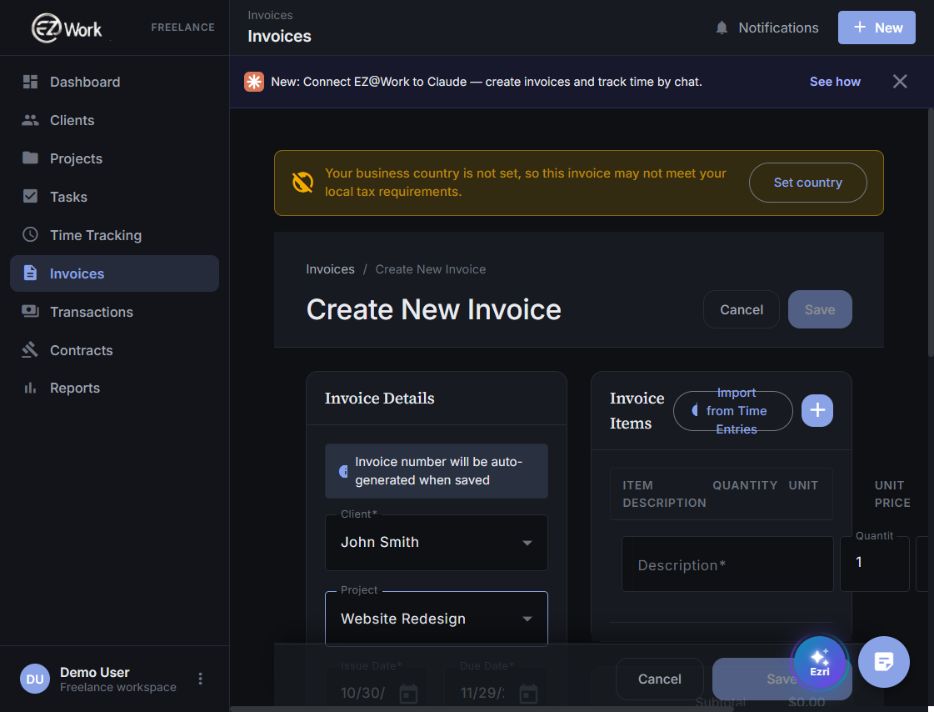
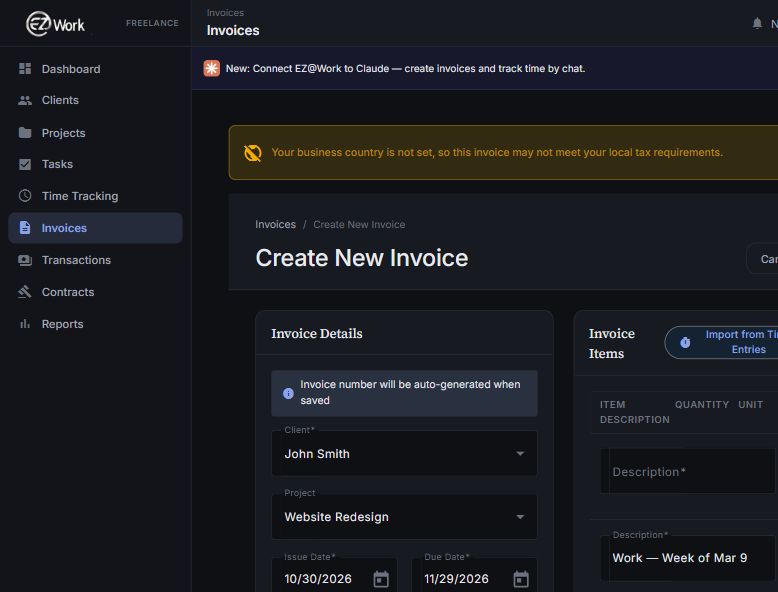
Open Invoices and select New Invoice. Choose John Smith in Client, then Website Redesign in Project. These are fictional demo selections. After selecting the project, the Invoice Items section exposes Import from Time Entries. Review the issue date, due date, currency and Draft status as well; the defaults are not a recommendation for your business.
Preview a specific date range
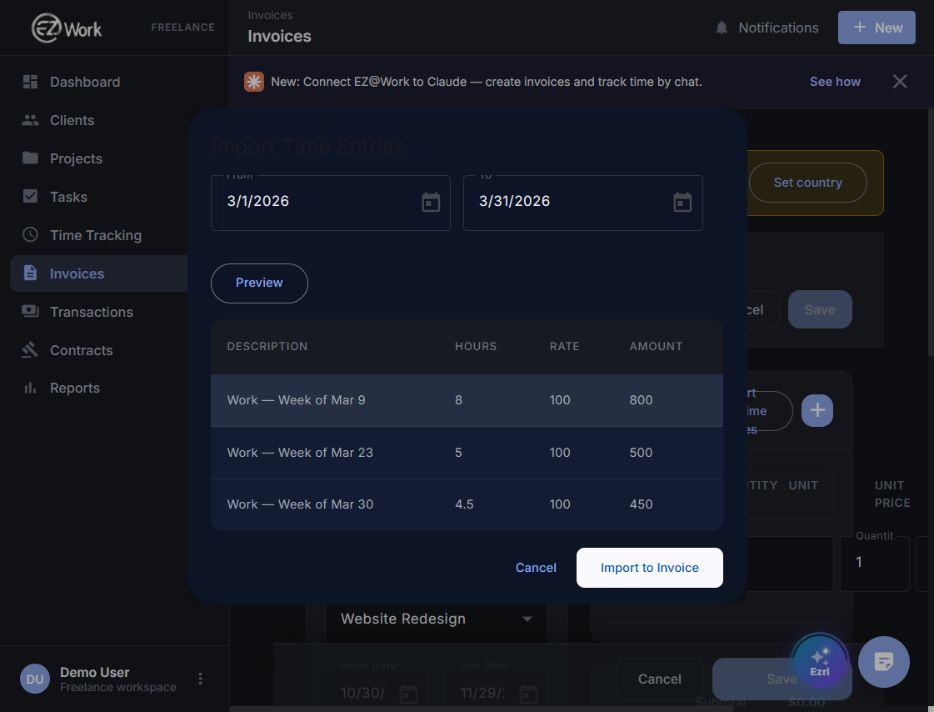
Select Import from Time Entries. Enter the start and end of the billing period and choose Preview. In this example the range is 1–31 March 2026, shown in the English date fields as 3/1/2026 and 3/31/2026. The preview contains three weekly lines: 8 hours, 5 hours and 4.5 hours, each at a demo rate of 100. Review the descriptions, hours, rates and amounts before choosing Import to Invoice.
Check the imported items before saving
Import to Invoice adds the previewed lines to the open form. Here, 17.5 hours at 100 produce a subtotal of $1,750. The screenshot also retains the initial empty item row and Save is disabled: this is an incomplete, unsaved form, not a finished invoice. Complete or remove empty rows and resolve validation issues before saving. Check the currency, dates, descriptions and total against the intended bill.
Business settings and the Israel allocation workflow
Select the business country and complete the business details in Business Settings. The application sets the VAT rate according to the country. For Israel, the form also offers an exempt-business option. The Tax Authority area in Business Settings provides the SHAAM connection, connection status and authorization renewal controls. Saving a draft and emailing the invoice are separate actions. Emailing an invoice to the client triggers the SHAAM allocation-number request when required, and the received number appears on the invoice. The allocation number is displayed in the invoice details on the PDF sent to the client.
Review the notice and the resulting document
The invoice draft displays a notice that EZ@Work will request and print an allocation number when the invoice is issued. It shows the threshold and the invoice amount before VAT. Review the client, amounts and email address before sending; then check the resulting invoice and its allocation number. Check current eligibility and threshold requirements with the Israel Tax Authority.
Questions along the way
Why is Import from Time Entries missing?
In the observed demo it appeared only after selecting both a client and the related project. Check those selections first.
Why are there no preview lines?
Check the selected project and date range, then compare them with the existing time log. The demo records used here are in March 2026, outside the form’s default October range.
Does importing save or send the invoice?
Importing fills the open form. Saving and emailing are separate actions. In the Israel workflow, emailing triggers the SHAAM allocation-number request when required, according to the product workflow.